 SOC Anywhere
A security incident rarely exists in isolation. The device that triggered an alert today may have been involved in a different incident last week. The user account under investigation might have appeared in three other alerts over the past month. An IP address flagged as suspicious could be a common thread running through seemingly unrelated events.
The challenge is finding these connections. Microsoft Defender for Endpoint does a solid job of grouping related alerts into a single incident when they occur around the same time. If multiple alerts fire on the same device within a short window, Defender correlates them and presents them as one incident. That is useful, but it only solves part of the problem.
What Defender does not do is link incidents to each other across time. The incident from two weeks ago involving the same device, or the one from last month involving the same user account, remains a separate entry in the queue. You can search for a device name or user in the security portal's incident history, but the workflow to do so is not particularly streamlined. It involves navigating away from the incident you are working on, running a search, and then piecing together the context yourself. It is not that it cannot be done, but the security portal was not designed with this specific workflow in mind, so it tends to get skipped in the day-to-day.
This is what related incidents in SOC Anywhere are designed for. Not replacing Defender's within-incident alert correlation, but extending it across your incident history. When you open an incident, you immediately see past incidents that share the same evidence, giving you the historical context that Defender's incident grouping does not provide.
Why connections between incidents matter
Consider a scenario that plays out regularly in organizations of all sizes. A user's laptop triggers an alert for suspicious PowerShell activity. The analyst investigates, determines it was caused by a legitimate admin script, and closes the incident as a false positive. Two weeks later, the same laptop triggers a different alert, this time for credential access. Defender creates a new, separate incident because the alerts are unrelated in type and timing. A different analyst picks it up, investigates from scratch, and spends time establishing context that already existed in the earlier incident.
Defender's correlation handled each incident well in isolation. The alerts within each incident were grouped correctly. But the connection between the two incidents, the fact that they involve the same device and that the first one was already investigated, is invisible unless someone actively goes looking for it.
Now multiply this across dozens of devices, users, and alert types over months. The amount of duplicated investigation effort is significant, but largely invisible. Nobody tracks how often analysts are rediscovering things that were already known.
This is precisely the gap that related incidents fill. Not duplicating what Defender already does within an incident, but answering the question that Defender leaves open: what has happened before with this same evidence, and how was it handled?
Related incidents address this by surfacing connections automatically. When you open an incident, you can immediately see what other incidents share the same devices, users, IP addresses, files, or alert types. This provides three things:
- Historical context — what has happened before with the same evidence, and what conclusions were reached
- Pattern detection — recurring alerts or progressive escalation across the same assets, which can indicate a persistent threat
- Faster triage — knowing that a device has been involved in five resolved false positives for the same alert type is very different from seeing a single isolated incident
How it works
When you open an incident in SOC Anywhere, the Related tab shows all other incidents in your environment that share evidence with the one you are looking at. The system checks for overlap across multiple evidence types:
- Devices — matched by hostname or DNS name
- Users — matched by user principal name or account name
- IP addresses — matched by source, destination, or last known external IP
- Files and processes — matched by filename or SHA256 hash
- URLs — matched by the URL domain
- Alert titles — incidents that triggered the same type of alert
This runs against locally synced data, not live API calls, so results load quickly regardless of how many incidents are in your environment.
Interactive evidence filtering
A list of related incidents is useful, but it can be noisy. If an incident involves a commonly used device and a specific suspicious IP address, the related incidents will include everything that has ever touched that device, which may be dozens of results. Most of those are probably not relevant to your investigation.
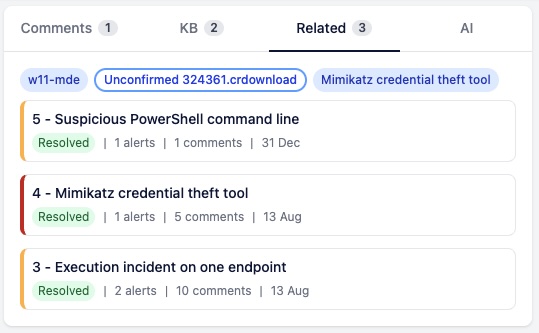
To handle this, every piece of evidence from the current incident appears as a clickable tag above the results list. Each tag is colour-coded: blue when it matched other incidents, white when it did not find any matches. You can toggle individual tags on and off to narrow the results.
For example, if you are investigating an incident that involves both a user laptop (which appears in many incidents) and a suspicious external IP (which is more specific), you can disable the device tag and enable only the IP address. The results instantly update to show only incidents that share that specific IP, which is likely the more interesting connection.
This filtering runs server-side against your synced incident data, so there are no external API calls involved. The results come back fast, even with large datasets. Your filter selections are also persisted, so when you navigate between incidents and come back, your filters are right where you left them — making it easy to stay in the flow of your research.
What this looks like in practice
The related incidents for a given incident appear on the detail page as a panel alongside comments, playbooks, and evidence notes. Each related incident shows its display name, severity, status, alert count, and how long ago it was created.
Clicking a related incident navigates directly to its detail page. Your evidence filter selections are preserved in session storage, so if you go back, you pick up where you left off.
Multi-stage attack detection
One of the more valuable uses of related incidents is spotting multi-stage attacks. An attacker who compromises a user account might trigger a credential access alert, then days later use that account for lateral movement, and eventually trigger a data exfiltration alert on a different device.
Each of these might appear as a separate incident in Defender. Without related incidents, the connection between them depends entirely on an analyst remembering or manually searching. With related incidents, opening any one of the three immediately shows the other two because they share the same user account.
This is the kind of correlation that dedicated SIEM and XDR platforms do well, but it is often out of reach for smaller teams who do not have the time or budget to build and maintain custom detection rules. Related incidents bring that capability to the incident triage workflow with zero configuration.
False positive patterns
Not every pattern is malicious. Related incidents are equally useful for identifying recurring false positives. When you see that the same device has triggered the same alert type twelve times in the past month, all closed as false positives, you have strong evidence for either creating a suppression rule in Defender or documenting it in an evidence note so the next analyst can close it quickly.
Without the related incidents view, these patterns tend to go unnoticed. Each occurrence is handled individually, consuming analyst time that could be spent on actual threats.
Getting started
Related incidents is enabled by default for new SOC Anywhere environments. If you have not used it yet, open any incident and click the Related tab. The first thing you will see is whether the current incident has connections you were not aware of.
A few tips for getting the most out of the feature:
- Use the evidence filter tags — do not just look at the full list. Toggle tags to understand which specific piece of evidence is the common thread. This tells you more about the nature of the relationship than the list alone.
- Check related incidents when closing — before resolving an incident, glance at the related tab. If there are recent related incidents with the same evidence, it may change your assessment of severity.
- Combine with evidence notes — when you discover something useful through a related incident, write an evidence note so the knowledge is captured for next time. Related incidents show you the pattern. Evidence notes capture your conclusions.
Conclusion
Security incidents are connected in ways that are hard to see when you handle them one at a time. Related incidents surface those connections automatically, giving analysts the broader context they need to make better decisions during triage.
For smaller teams without dedicated threat hunting resources, this kind of automatic correlation is particularly valuable. It turns what would otherwise require manual cross-referencing into something that is available with a single click.
Every investigation is better with context. Related incidents make sure that context is not buried in closed tickets from three weeks ago.
About the Author: we're building SOC Anywhere, a mobile-first security operations platform designed for teams without 24/7 SOCs. We've spent years working with Microsoft security tools and helping SMEs improve their security posture without enterprise budgets.
See Your Incidents in Context
SOC Anywhere automatically discovers related incidents, surfaces matching playbooks, and builds a shared knowledge base for your team. All optimized for mobile.
Try it for free — no credit card needed