 SOC Anywhere
SOC Anywhere connects to Microsoft Defender via the Microsoft Graph API. To authorise this connection, you need to create an App Registration in your Microsoft Entra ID tenant and grant it the required API permissions. This guide walks you through every step.
You will need the Global Administrator or Application Administrator role in your Entra ID tenant to complete this process.
Step 1: Create the App Registration
- Sign in to the Azure Portal.
- Navigate to Microsoft Entra ID

- Click on App registrations
- Click New registration.
- Fill in the form:
- Name: SOC Anywhere (or any name you prefer)
- Supported account types: Accounts in this organizational directory only (Single tenant)
- Redirect URI: leave blank for now
- Click Register.
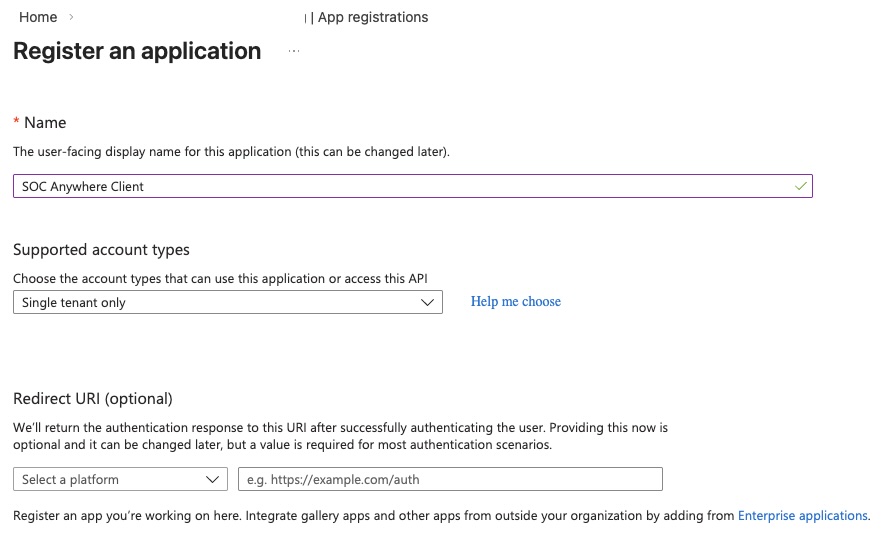
After registration you will be taken to the app overview. Copy the Application (client) ID and the Directory (tenant) ID — you will need both when configuring SOC Anywhere.

Step 2: Create a Client Secret
- In your new app registration, go to Certificates & secrets.
- Under Client secrets, click New client secret.
- Add a description (e.g. SOC Anywhere) and choose an expiry period.
- Click Add.
- Copy the Value immediately — it will not be shown again after you navigate away.
⚠️ Copy the secret now: Azure only shows the secret value once. If you navigate away before copying it, you will need to delete it and create a new one.
Step 3: Grant API Permissions
SOC Anywhere needs read access to Microsoft Defender incidents via the Microsoft Graph API.
- Go to API permissions in your app registration.
- Click Add a permission.
- Select Microsoft Graph.
- Select Application permissions (not delegated).
- Search for and add the following permissions:
SecurityIncident.ReadWrite.AllSecurityAlert.ReadWrite.AllCustomDetectionsRead.All
- Click Add permissions.
- Click Grant admin consent for [your tenant] and confirm.
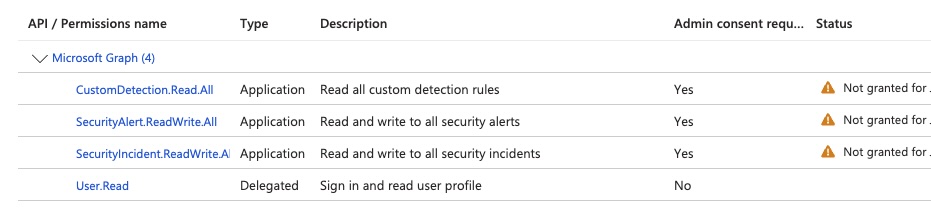
💡 Admin consent required: Application permissions always require admin consent. The Grant admin consent button is only available to Global Administrators. If you do not see it, ask your Entra ID admin to grant consent.
After granting consent, all permissions should show a green tick under the Status column.
Troubleshooting
Insufficient privileges error
This means admin consent has not been granted for one or more permissions. Return to API permissions and check that all permissions show a green status tick. If any show a warning icon, click Grant admin consent again.
Invalid client secret
Client secrets expire. If your connection worked before but has stopped, your secret may have expired. Create a new secret in Certificates & secrets and update the value in SOC Anywhere Settings.